Importing to Storm Buckets
If your data lives on another S3-compatible provider today, Storm can pull it
in directly. Enter the connection details for where your data lives now, and
Storm runs the transfer on its own infrastructure.
This is for bringing data in from somewhere else, once. If you already
have a Storm bucket and want to point your own tools at it, see
Connecting S3 Tooling instead. And if you want the same pull on a standing schedule
rather than a one-time move, that's
Backing up to Storm Buckets.
| What you provide | Source endpoint, access key, secret, and the bucket name(s) to pull |
| What runs where | Entirely server-side, on Storm's infrastructure |
| What Storm stores | Nothing from your source key past the moment it starts the job |
| What happens on failure | Whatever already transferred stays; the step reports why |
Your source key is used once. It authenticates the job, then it's gone:
never written to Postgres, never logged, held in memory only for as long
as the transfer needs it.
How it works
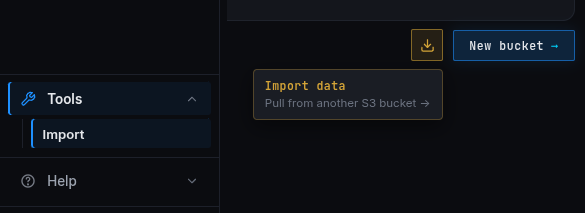
Four steps: Import walks you through all of them in order. Once you're in the dashboard, the same tool lives under
Tools > Import, and a shortcut button sits next to Create bucket on your
overview.
-
Connect. Enter the endpoint URL and an access key for the bucket
you're importing from. These are the same values you'd hand to any
S3-compatible tool. If the endpoint contains the region (Backblaze,
Wasabi, AWS, and most others put it there), Storm fills the region
field for you; it stays editable if your provider does something
unusual.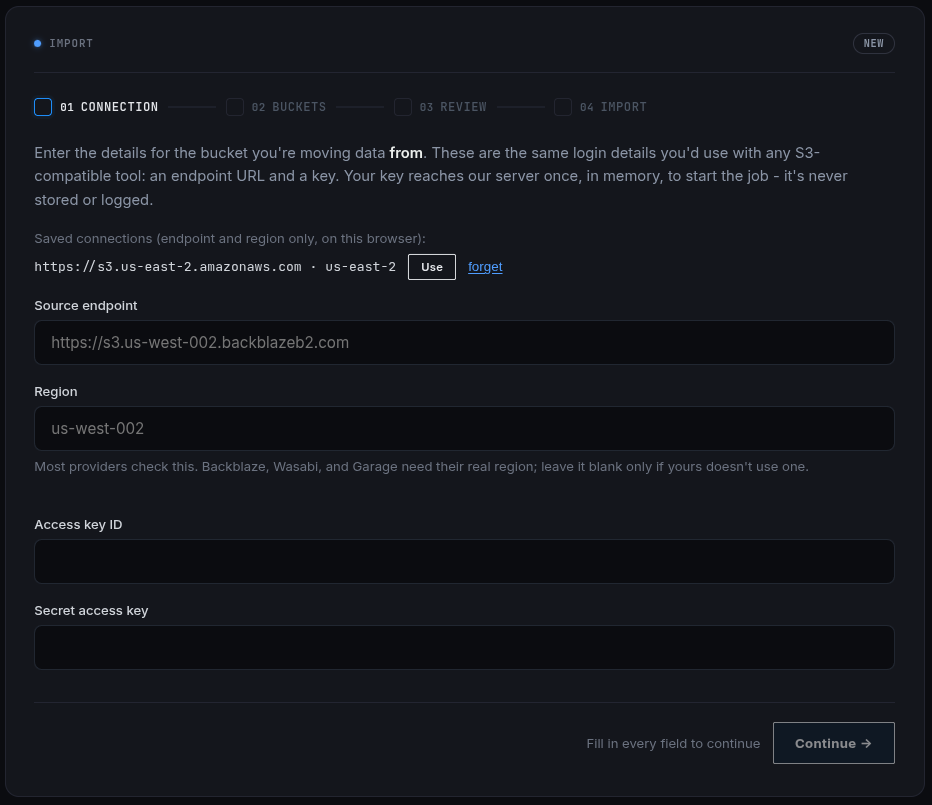
-
Choose buckets. Name the source bucket to pull from, then decide
where it lands: a brand-new Storm bucket, or one you already have.
Picking a non-empty existing bucket is allowed, Storm warns you first
rather than blocking the move.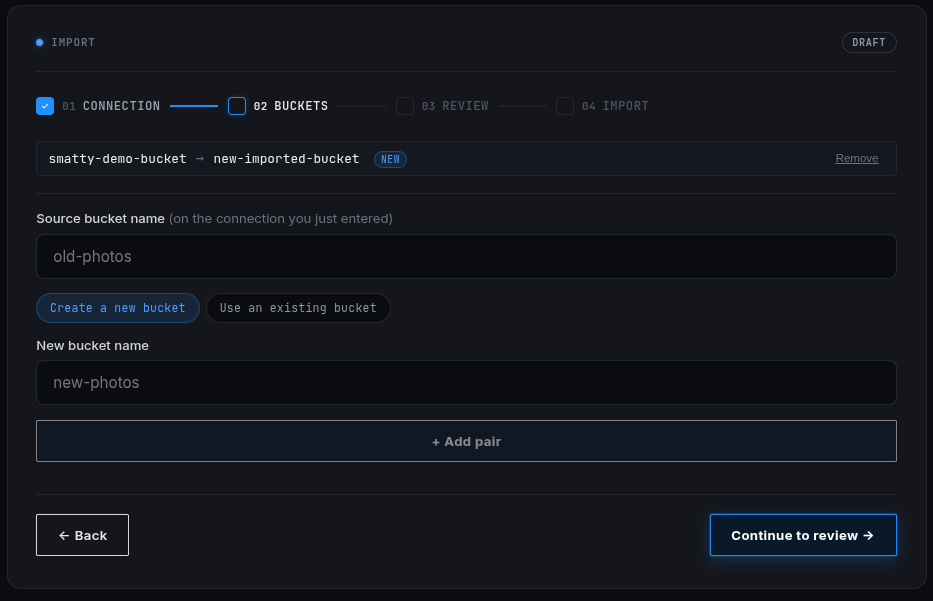
-
Review. Every pair gets measured against your account's available
storage before anything moves, so you see exactly what fits, and exactly
how much you're over by if it doesn't.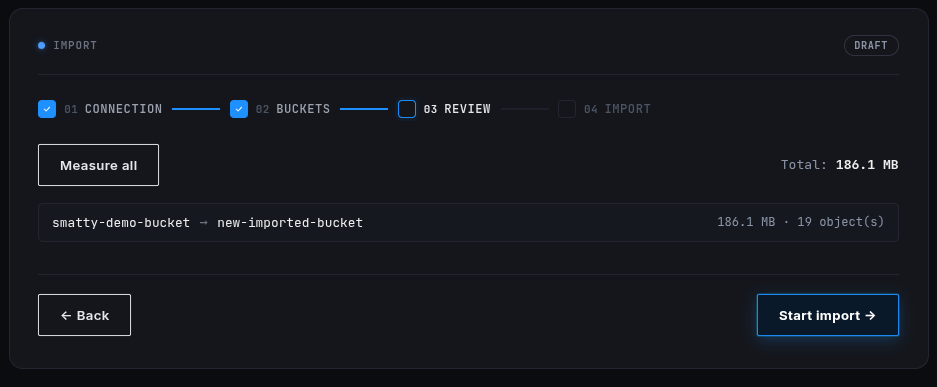
-
Import. Storm transfers each pair and reports real progress: bytes
moved, objects moved, and a specific reason if a step fails, never a
bare "failed."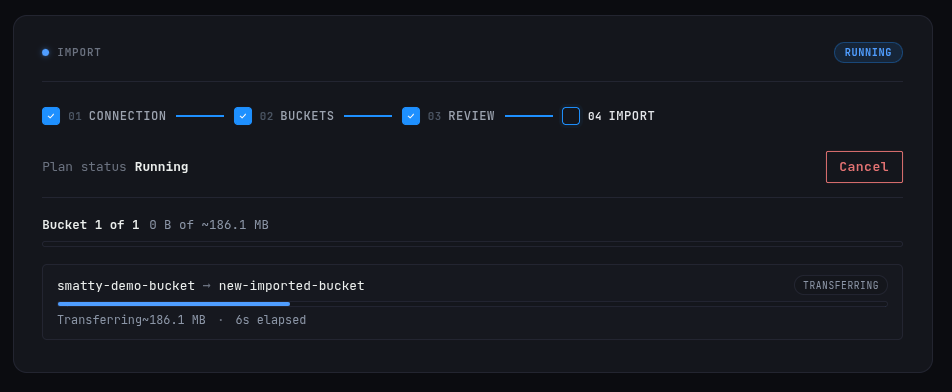
Importing into an existing bucket
If the destination already exists on your Storm account and has data, Storm
asks you to confirm you own it before touching it: pick the bucket's admin
key, and Storm mints a fresh, single-use key for the transfer itself, then
deletes it once the job is done. Your admin key's secret only ever proves
ownership. It is never the credential the transfer actually runs on.
If the destination bucket is empty, Storm does not need this proof. Just
select the bucket from your list and Storm sets up a single-use transfer key
on its own, the same as importing into a brand-new bucket.
Verifying the import
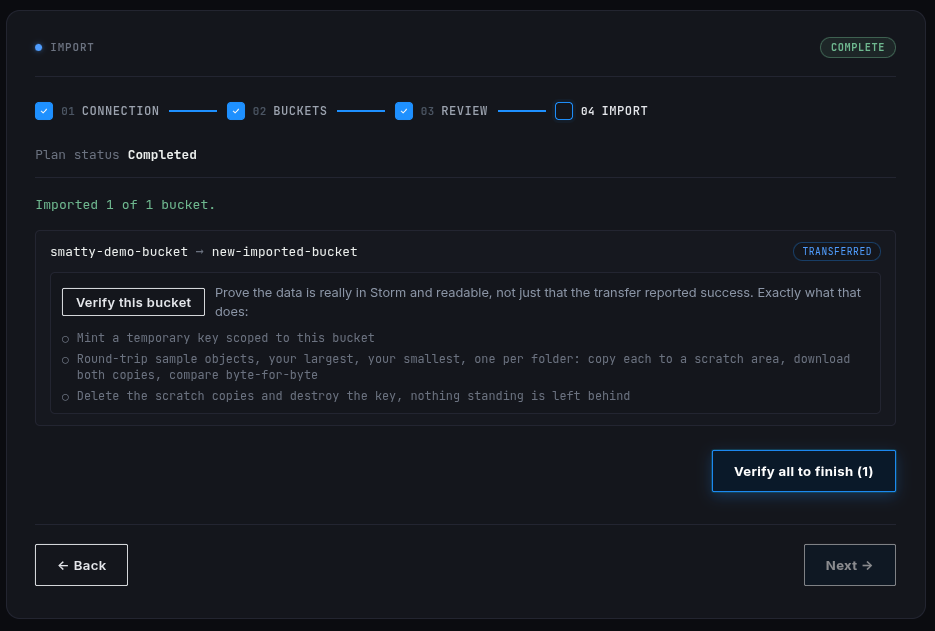
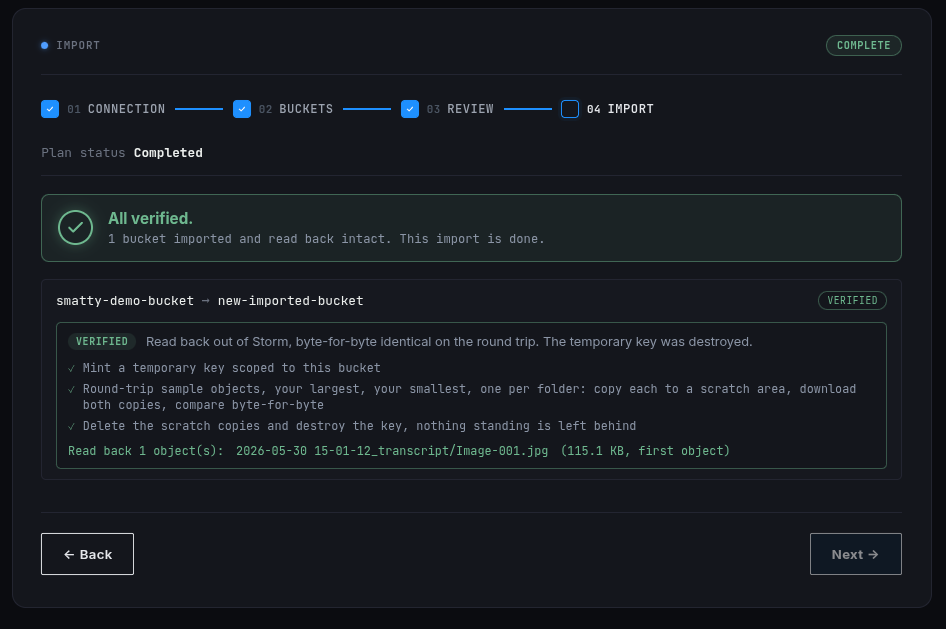
A transfer completing isn't the same as your data being right. Once a
bucket's import finishes, run a restore test: Storm samples real objects
back out of the destination bucket, the largest one, the smallest one, and
one from each top-level folder, and shows you exactly what it checked. Not
a bare pass or fail: the literal objects and sizes, so you can trust the
result instead of taking Storm's word for it.
Where this works from
Any S3-compatible provider works: MinIO, Backblaze B2, Wasabi, DigitalOcean
Spaces, Cloudflare R2, another Storm account, or a self-hosted Garage or
Ceph cluster. If it speaks the S3 API and issues an access key and secret,
Storm can pull from it.
Create a Storm account
and request Buckets alpha access. Import is rolling out to alpha accounts;
once it's enabled on yours, start an import.
See Connecting S3 Tooling for pointing
your own tools at a bucket you already have on Storm.