Static Hosting
Deploy a static website directly from a bucket, with no web server and no
build pipeline in front of it. This is the feature behind Storm Sites.
https://<your-subdomain>.stormsites.ca/<path/to/file>
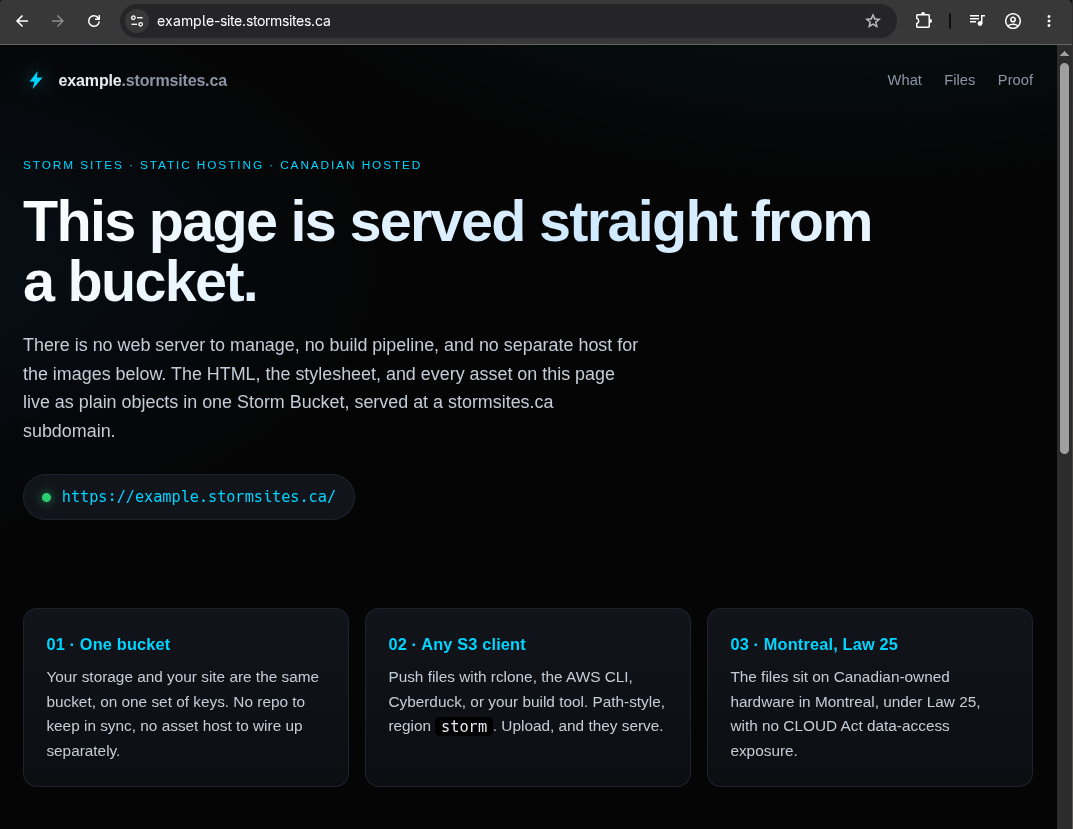
It covers two deployment shapes:
-
Static site. Upload HTML, get a website.
index.htmland404.html
are served at the root and on missing paths if you add them. Neither is
required. -
Application asset origin. PeerTube, Mastodon, and similar
applications write their public assets over S3 with an access key, and
point their asset base URL at the bucket so viewers fetch directly.
Understand the boundary before you enable it. Static site hosting turns
the whole bucket into a public web root: every object in it becomes
fetchable at its full path by anyone, with no credentials. It is not a
per-object toggle. Enable it on a bucket that holds a deployed site or an
application's public assets, and keep private data in a separate bucket.
Content you serve is subject to the
Acceptable Use Policy.
Want your own domain instead of the Buckets-assigned subdomain? See
Custom Domains.
Enabling
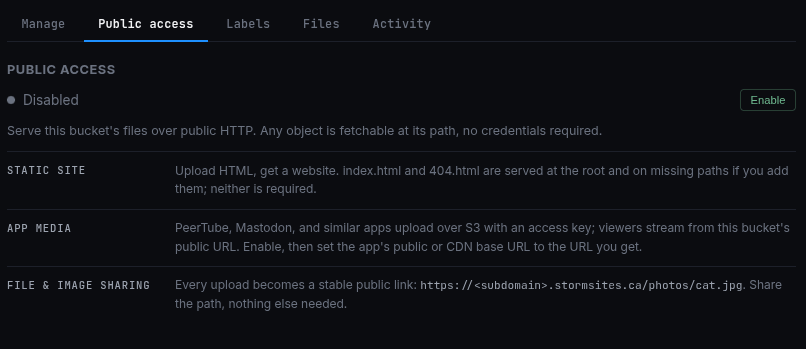
Open the bucket and switch to the Static Hosting tab. While it's off, the
tab explains the deployment shapes above and shows a single Enable button.
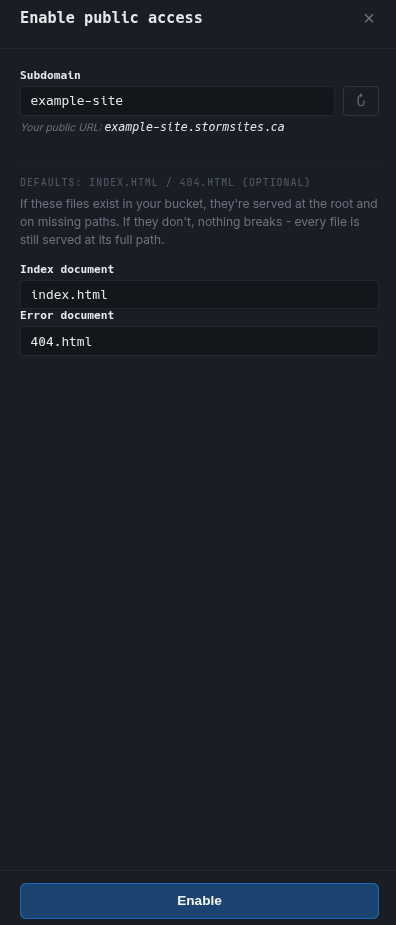
Click Enable and the setup dialog opens. Pick a subdomain or accept the
one Buckets suggests; the refresh button rolls a new suggestion. Names use
lowercase letters, numbers, and hyphens, and reserved names like admin or
api are rejected. Your public URL is shown live as you type. The index and
error documents default to index.html and 404.html; leave them as-is
unless your files are named differently.
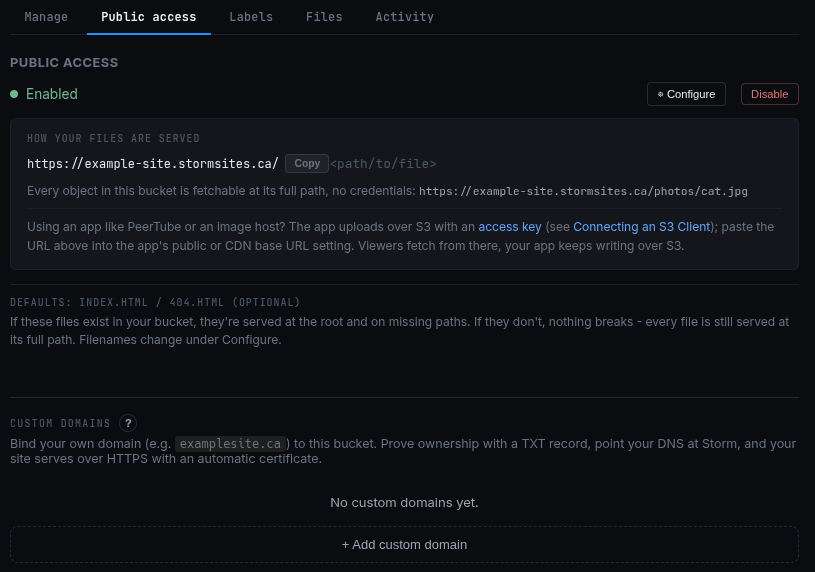
Once it's on, the tab shows how your files are served: the public base URL
with a Copy button, the path grammar, and the app-hookup note. Everything you
need to change later lives behind Configure, and Disable takes it back
offline.
Using a bucket as an application's asset origin (PeerTube and friends)
The setup is always the same pairing: the application writes over S3 with
credentials, and its viewers read the published assets over plain HTTP
without them.
-
Create an access key for the bucket. See
Managing Access Keys. -
Point the app's S3 storage config at the bucket: endpoint
https://alpha.buckets.stormdevelopments.ca, regionstorm, your bucket
name, the key id and secret. The full value list is in
Connecting S3 Tooling. -
Enable static hosting on the bucket and note the
stormsites.caURL. -
Set the app's public / CDN base URL setting to that URL. In PeerTube
this isobject_storage.*.base_url; other apps call it "CDN URL" or
"asset host".
The application keeps uploading over S3. Viewers fetch its published assets
directly from the bucket. Nothing proxies through the application server,
which is the point: the origin absorbs the asset traffic instead of the app.
Viewers of the hosted site never meet CORS: page and files share one origin.
An asset embedded on a different domain, a font or a video on someone
else's page, is governed by the bucket's CORS rules,
which admit any website until you add a rule.
Uploading files
Use any S3 client with the bucket's key. The endpoint is
https://alpha.buckets.stormdevelopments.ca and the region is storm:
# AWS CLI
aws s3 cp ./public/ s3://<your-bucket>/ --recursive \
  --endpoint-url https://alpha.buckets.stormdevelopments.ca

# MinIO client
mc alias set buckets https://alpha.buckets.stormdevelopments.ca <key-id> <secret>
mc mirror ./public buckets/<your-bucket>

# Hugo (configure an s3 deployment target pointing at the same endpoint)
hugo deploy
Path-style is required. If your client has a "force path style" option, turn
it on. Full client setup lives in
Connecting S3 Tooling.
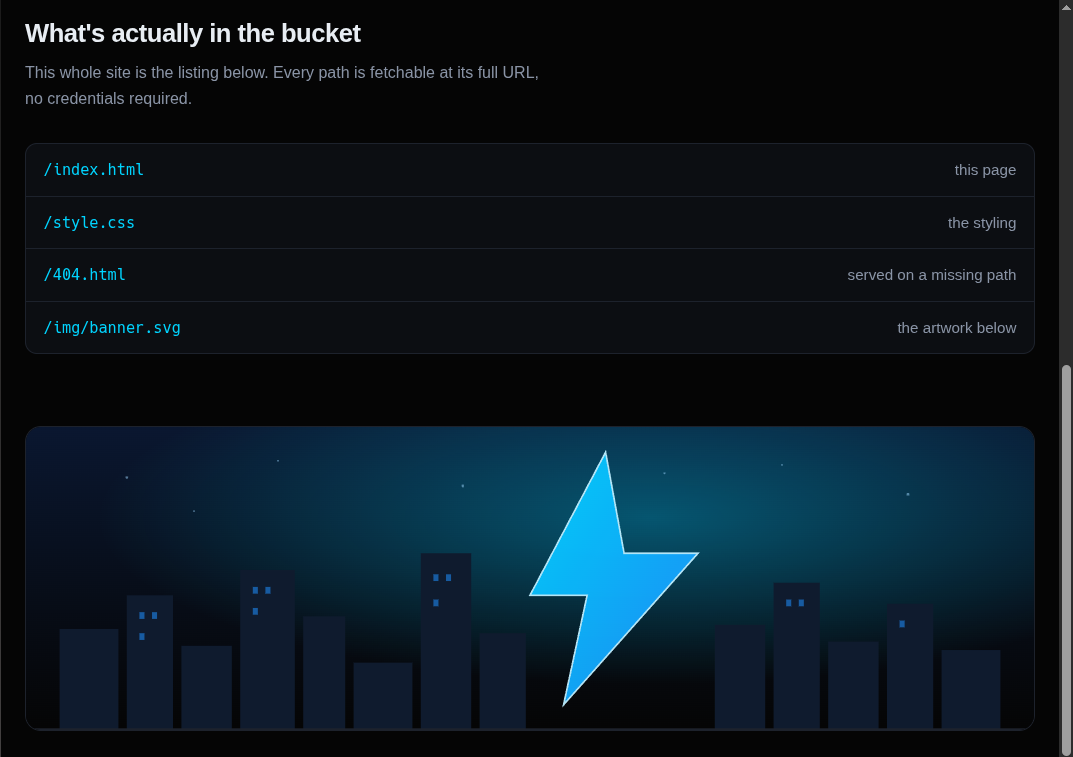
Whatever you upload is what gets served, at its exact path. There's no
intermediate build step and no manifest to keep in sync: the bucket listing
is the site.
Index and error documents (optional)
Defaults are index.html and 404.html. If these files exist in your
bucket, they're served at the root and on missing paths. If they don't,
nothing breaks: every file is still served at its full path. A missing path
returns HTTP 404 either way; the error document only customizes the body.
Override either filename in the enable dialog or later under Configure.
Changing the subdomain
Click Configure on a hosting-enabled bucket and pick a new name. Buckets swaps the
Garage alias add-before-remove, so a failed swap leaves your old URL working,
and both URLs resolve to the same bucket for a brief window. The rename is
captured in the bucket's audit log.
What persists when you disable
Disabling takes the public URL offline but keeps your subdomain reserved,
so the URL is stable across a disable-then-re-enable cycle. The reservation
is released only when the bucket itself is deleted. Your objects are
untouched either way; they just stop being publicly fetchable.
No lock-in
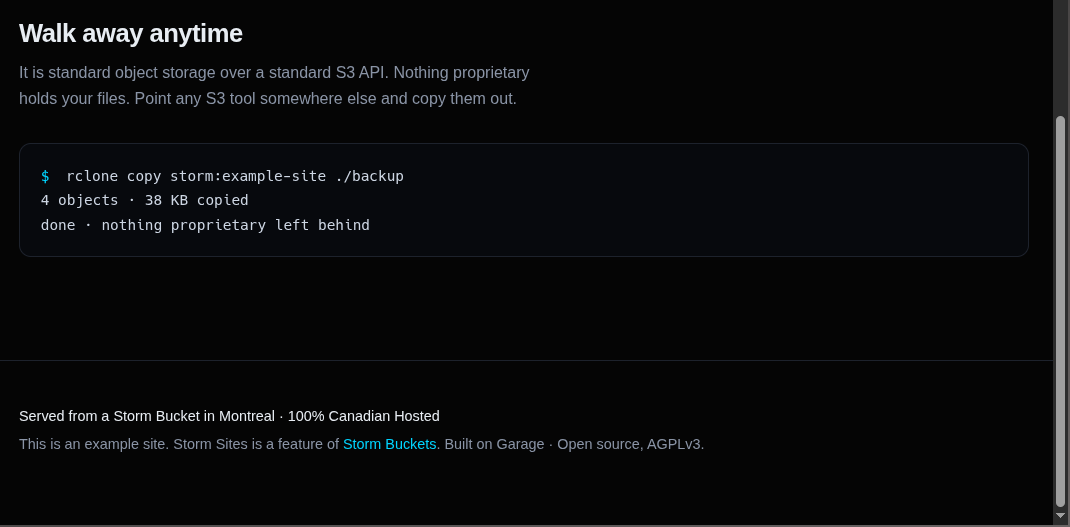
It's standard object storage over a standard S3 API. Point any S3 tool at
the bucket and copy everything out whenever you want; nothing proprietary
holds your files.
rclone copy storm:<your-bucket> ./backup
Limits
No CDN. The Montreal node serves Canadian traffic well; international
visitors will see higher latency.
Egress is the standard Buckets allowance: 3x your capacity on the endpoint the
site is served from, per month, throttled past that rather than billed, so the
invoice stays the same number. That is sized for a deployed site and its assets. If you are planning
a workload that sits well above it, talk to Storm before you launch so we can
plan capacity together.
Hosted content is subject to the Acceptable Use Policy.
Report abuse at /abuse/.