Backing up to Storm Buckets
If your working data lives on another S3-compatible provider, Storm can pull a copy in on a schedule you set. Connect the source once, pick a cadence, and every run copies what changed since the last one. This is Import's recurring sibling: same engine, run on a clock instead of once.
| What you provide | Source endpoint, access key, secret, and the bucket pair(s) |
| What runs where | Entirely server-side, on Storm's infrastructure |
| What Storm stores | The source key, encrypted at rest, until you disconnect the backup |
| What happens on failure | Completed buckets stay; you get a notification, and an email on the first failure in a streak |
Backup stores your source key; Import does not. A scheduled run has to
authenticate at three in the morning without you, so Storm keeps the key
encrypted at rest, uses it only to run the schedule you configured, and
Disconnecting the backup destroys it immediately.
How it works
Four steps: Backup walks you through them, and the same
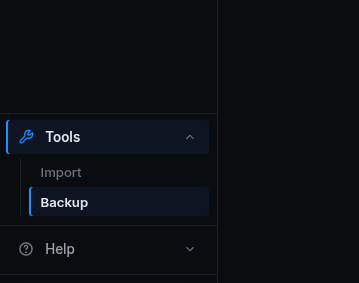
tool lives under Tools > Backup in your dashboard.
-
Connect. The endpoint URL and an access key for the provider you're
backing up from, the same values you'd hand any S3-compatible tool. If
the endpoint contains the region, Storm fills the region field for you,
and a connection you've saved before is one click. A read-only key is
enough and is the better choice: backups only ever read from the
source. The screen states the storage trade plainly, right where you
type the secret.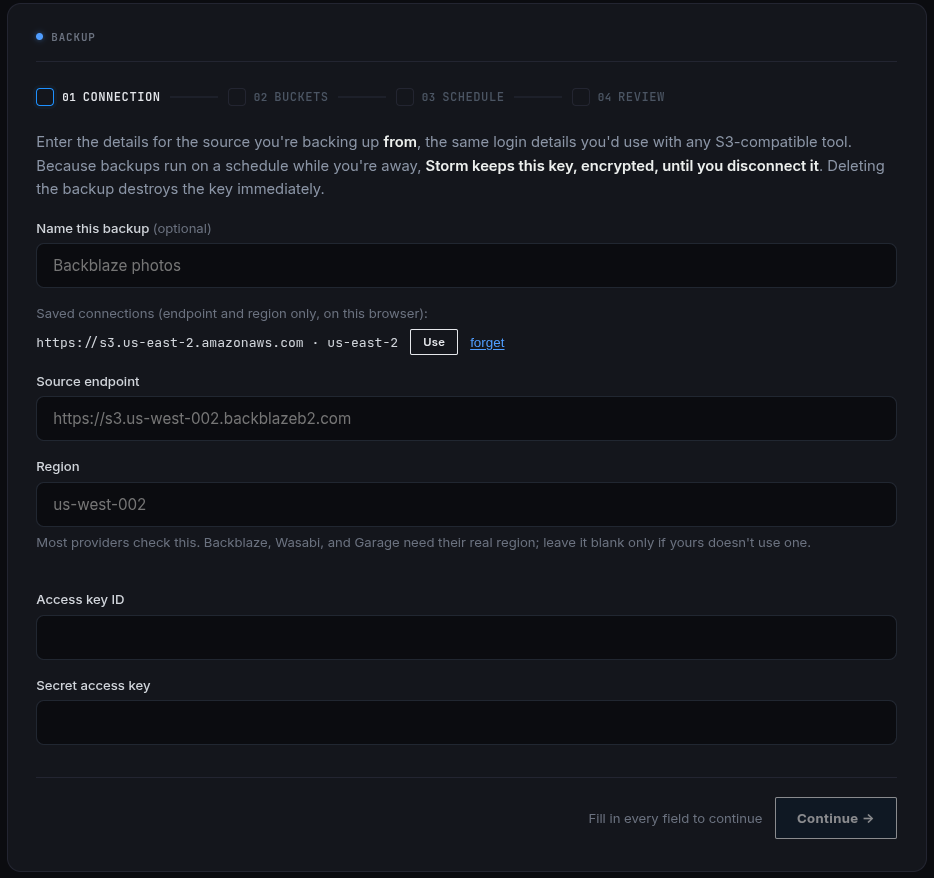
-
Choose buckets. Pair each source bucket with a Storm destination:
a brand-new bucket the tool creates for you, or one you already have.
Empty buckets are offered first; a bucket that already has data warns
you loudly, because backed-up objects and existing objects would mix
permanently. One Storm bucket serves exactly one backup, account-wide.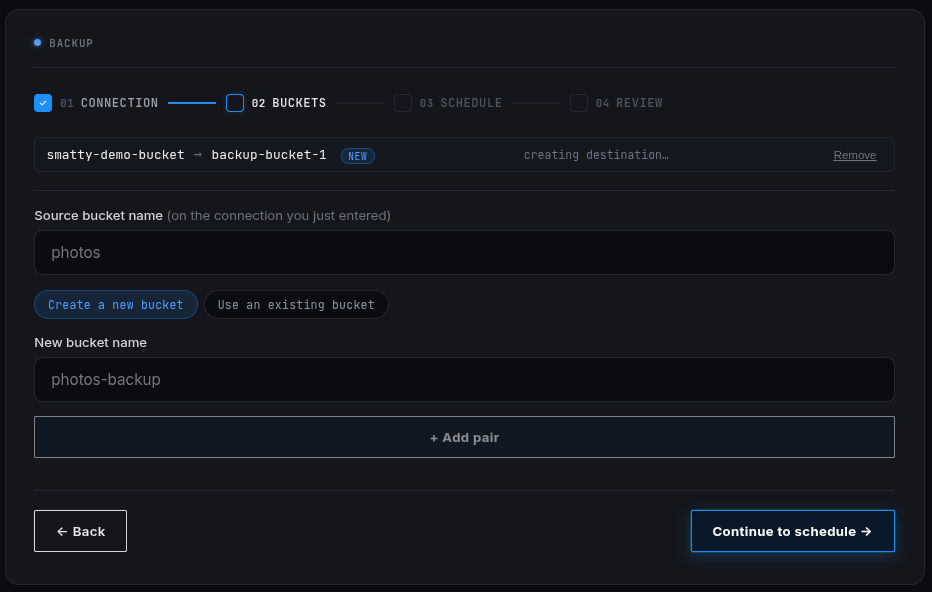
-
Schedule. Daily, weekly on a chosen day, or monthly on a chosen
date, at the hour you pick (UTC). Plain knobs that read back as a
sentence, never a cron string. Runs are incremental, so tighter
cadences cost little.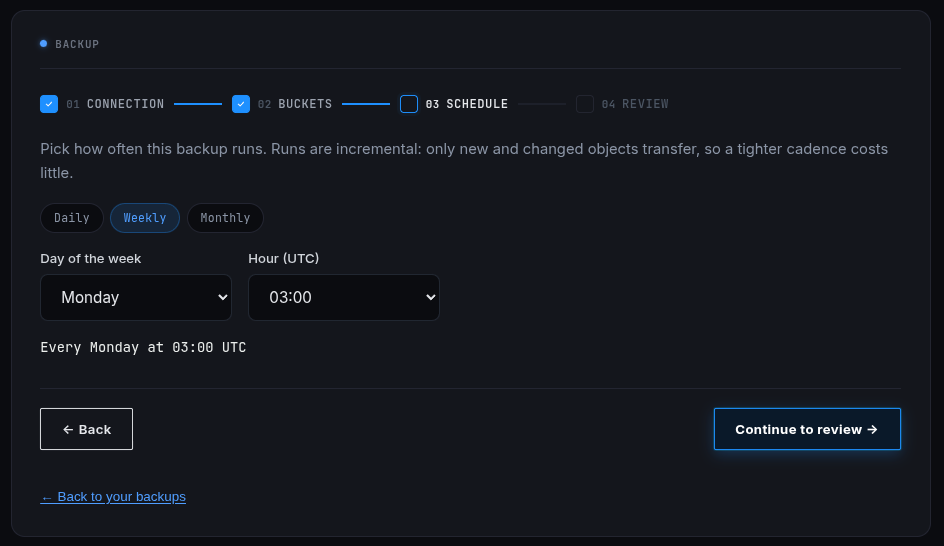
-
Activate. Review the whole setup and switch it on. From then on the
schedule fires runs on its own, and the management page is home.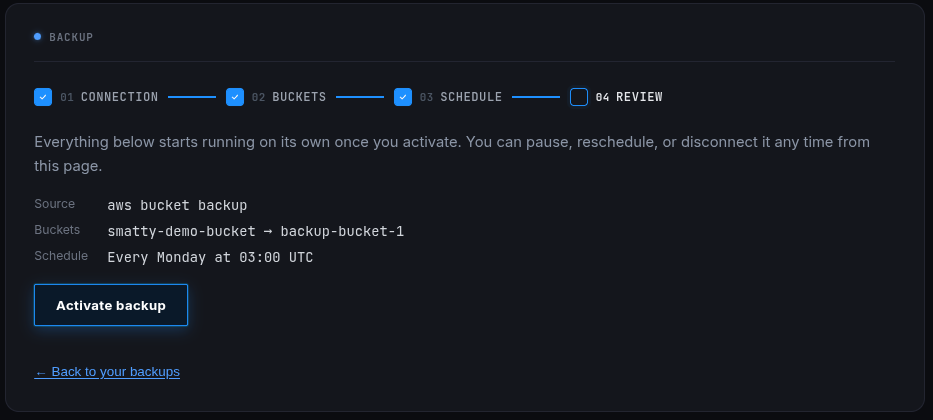
Living with a backup
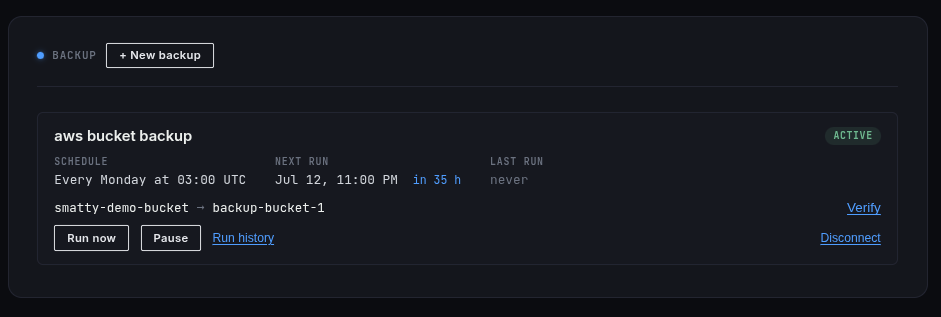
After activation the Backup page is a status surface, not a wizard: each
setup shows its schedule, the next and last run, and its pairs, with
pause/resume, Run now, Edit buckets, and the run history in reach.
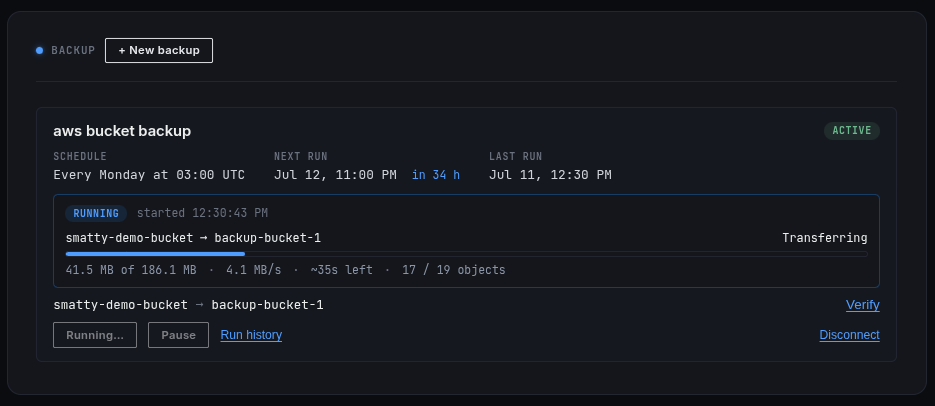
When a run is open, whether the schedule fired it or you pressed Run now,
it shows up right on the card and moves in real time: bytes transferred,
transfer rate, time remaining, and object counts per bucket.
Verifying a backup
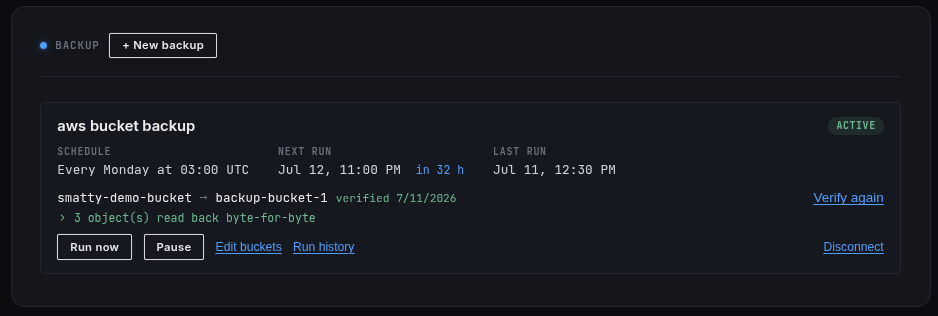
A run completing isn't the same as your data being safe. Any pair can be
verified in one click: Storm samples real objects back out of the
destination, your largest, your smallest, and one per top-level folder,
compares them byte-for-byte, and shows you exactly what it read. The
temporary key it used is destroyed afterward; nothing standing is left on
the bucket.
When a run fails
Failures are specific, never a bare "failed": a rejected source key, a
missing source bucket, a network interruption each say so. Completed buckets
in the same run are kept, the failed one reports why, and the next scheduled
run picks up from reality, not from a rollback. You get an in-app
notification for every failed run and an email for the first failure in a
streak, so a broken key can't quietly rot your safety net for a month.
The same rule covers the quieter failure: if you delete the Storm bucket a
backup writes into, that pair goes with it, the setup's card says so
plainly, and rather than letting the schedule no-op silently forever, Storm
pauses the backup and notifies you. Add a new pair with Edit buckets and
resume, or disconnect it.
Where this works from
Any S3-compatible provider works: MinIO, Backblaze B2, Wasabi, DigitalOcean
Spaces, Cloudflare R2, another Storm account, or a self-hosted Garage or
Ceph cluster. If it speaks the S3 API and issues an access key and secret,
Storm can pull from it on a schedule.
What this is not
This backs up another provider into Storm. It is not a backup of your
Storm buckets to somewhere else, and not a sync tool: deletions on the
source are not mirrored to the destination. If you want a one-time move
instead of a standing schedule, use Import.
Create a Storm account
and request Buckets alpha access. Backup is rolling out to alpha accounts;
once it's enabled on yours, set one up.
See Importing to Storm Buckets for the one-time
version of the same machine.