CORS Rules
Your bucket's CORS rules say which websites may use it from a browser,
with which methods and headers. A valid key is still required either way.
When you need them
| Your setup | CORS rules |
|---|---|
| A web app, wiki or uploader on your own domain calling the S3 API with a key | Yes. |
| Tools that send no website: the AWS CLI, rclone, a backup job, a server | No. A request with no Origin header is never refused by a rule. |
| A static site served from the bucket, visited directly | No. The page and its files share one origin. |
| That site's files embedded on another domain (a font, a video, a JSON file) | Yes. The same rules apply on the web endpoint. |
The default
A bucket with no rules answers *: any website may use it, with a valid
key. Nothing is stored. The Files tab in this dashboard is a website too,
and it works on every bucket because of this default.
Add a rule and only the websites you name get through.
Set rules in the dashboard
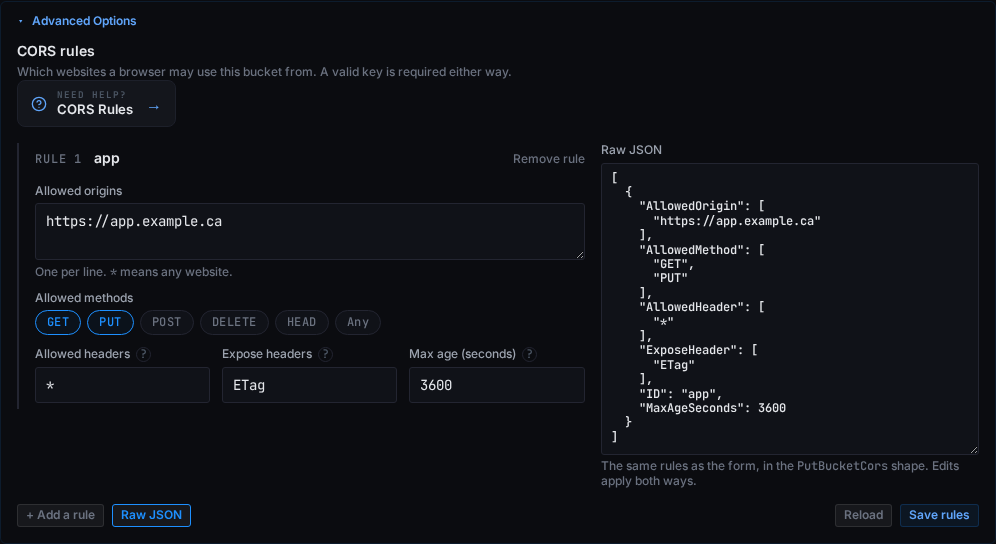
Open the bucket, Manage, then Advanced Options. The editor loads the
live rules from the bucket, never a cached copy, so what you see is what
get-bucket-cors would return.
Each rule has:
| Field | Meaning |
|---|---|
| Allowed origins | One website per line, scheme included: https://app.example.ca. * means any. |
| Allowed methods | GET, PUT, POST, DELETE, HEAD, or Any. |
| Allowed headers | Request headers the browser may send. * for any. Uploads from a page need Authorization, Content-Type and the x-amz-* headers an SDK sets. |
| Expose headers | Response headers the page's JavaScript may read. ETag for multipart uploads. |
| Max age | Seconds a browser may reuse its preflight answer. Blank leaves it to the browser. |
| Rule name | Optional, for you. |
Raw JSON shows the same rules in the put-bucket-cors shape and edits
both ways: type valid JSON and the form follows, edit the form and the JSON
follows.
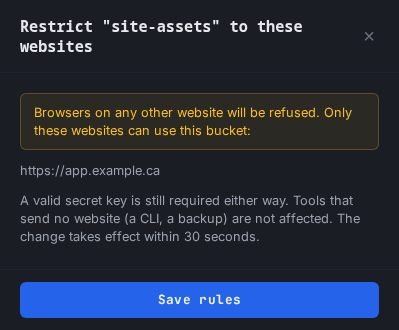
Saving a rule that restricts asks you to confirm and lists the websites
that will still get through. If someone changed the rules since you loaded
them (another tab, a put-bucket-cors), the save is refused and the editor
reloads onto the live rules instead of overwriting them.
Set rules over S3
A rule you write here appears in the editor unchanged, and the other way
round.
{
  "CORSRules": [
    {
      "ID": "app",
      "AllowedOrigins": ["https://app.example.ca"],
      "AllowedMethods": ["GET", "PUT"],
      "AllowedHeaders": ["*"],
      "ExposeHeaders": ["ETag"],
      "MaxAgeSeconds": 3600
    }
  ]
}
aws s3api put-bucket-cors --bucket your-bucket-name --cors-configuration file://cors.json \
  --endpoint-url https://alpha.buckets.stormdevelopments.ca --profile stormdevelopments

aws s3api get-bucket-cors --bucket your-bucket-name \
  --endpoint-url https://alpha.buckets.stormdevelopments.ca --profile stormdevelopments
The key needs owner permission on the bucket: the bucket's admin key, or an
account key. Profile setup is in
Connecting S3 Tooling.
How Storm enforces them
AWS refuses at the preflight. Storm cannot: every bucket is reached through
its key, so the unauthenticated preflight cannot tell which bucket it is
for. The preflight answers * and the browser sends the real request. Storm
reads the rules on that request, the one carrying your key, the bucket and
the Origin, and refuses it when no rule matches: HTTP 403 with the S3
error code cors_origin_refused. The outcome for the bucket is the same as
a refused preflight.
Rules are stored the moment you save. Whether your endpoint refuses on them
yet is on the badge beside the editor: Enforced, or Stored, not
enforced yet. Until an endpoint enforces, it answers * for every
website. A change on an enforcing endpoint takes effect within 30 seconds.
A refused request in the Files tab, or from your own page, is covered in
Troubleshooting.